Changing your TU-AD password (upTUdate, email, Active Directory) macOS (MacBook/iMac)
Delete saved login details in macOS (MacBook/ iMac)
In macOS, passwords are stored in two main locations: in the classic Keychain Access (for programs such as Outlook, Wi-Fi, network drives) and in System Preferences (for websites/ Safari).
Option 1: Open Keychain Access
The fastest way to find Keychain Access is to use Spotlight search:
- Press Command (⌘) + Space on your keyboard or click the magnifying glass icon in the menu bar at the top right.
- Type “Keychain” or “Keychain Access” and open the Keychain Access app.
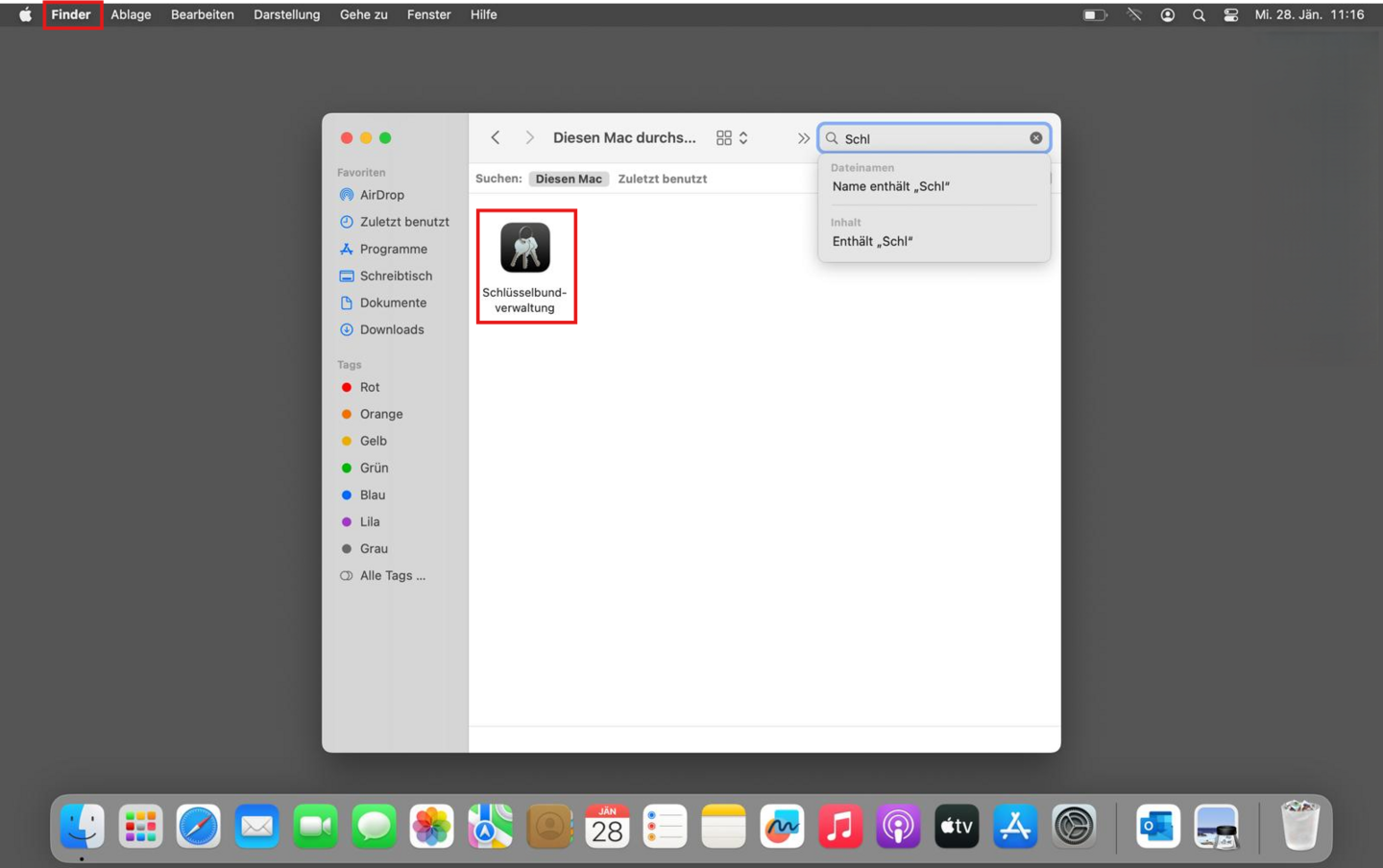
Certificates, Wi-Fi passwords, and email accounts are stored in Keychain Access.
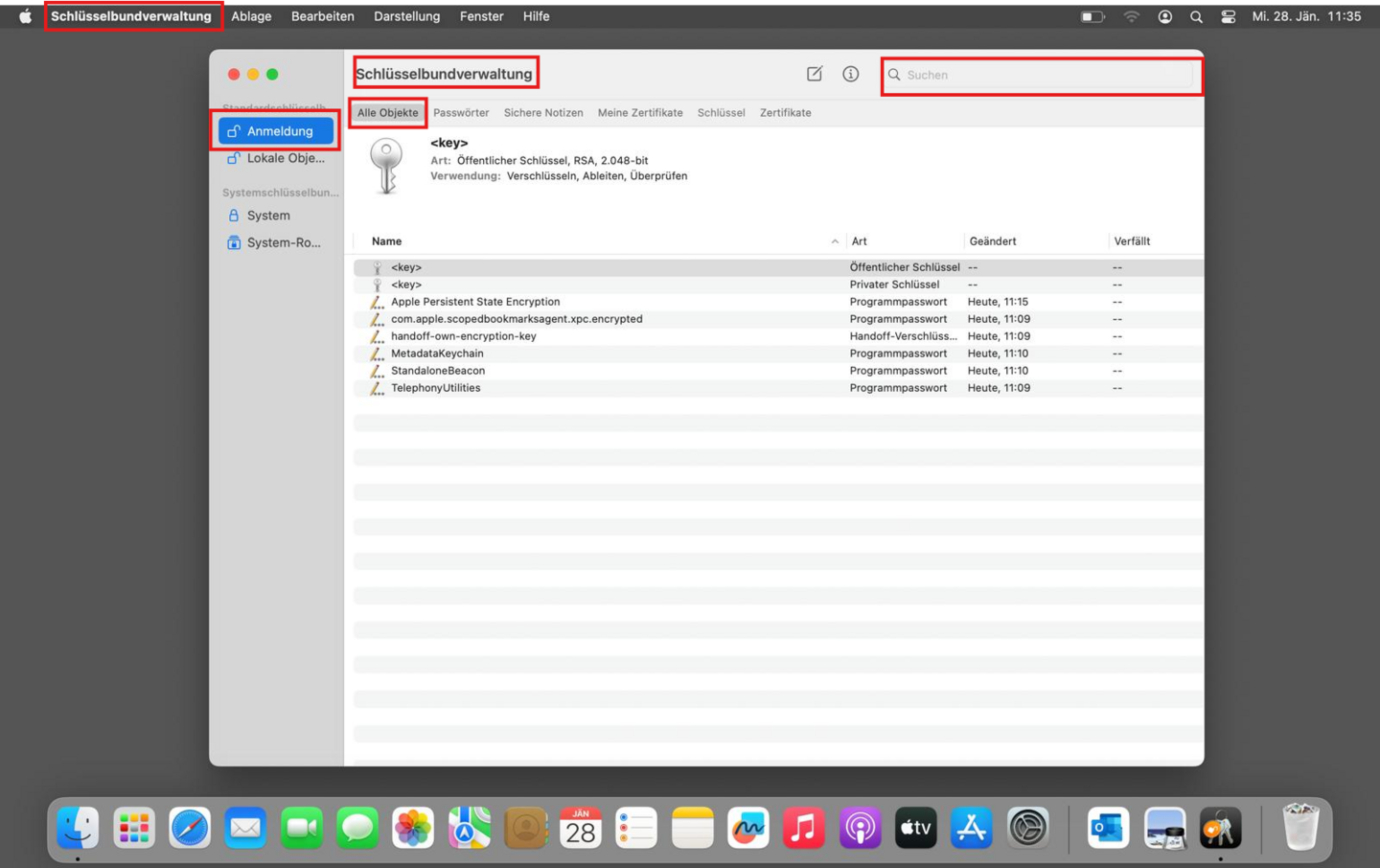
- Select the Login entry in the left-hand bar under “Default Keychains.”
- Use the search field at the top right of the window and search for terms such as:
- Exchange
- Outlook
- tuwien
- uptudate
- Office
- Right-click on the entries found and select “Delete.” Confirm the process.
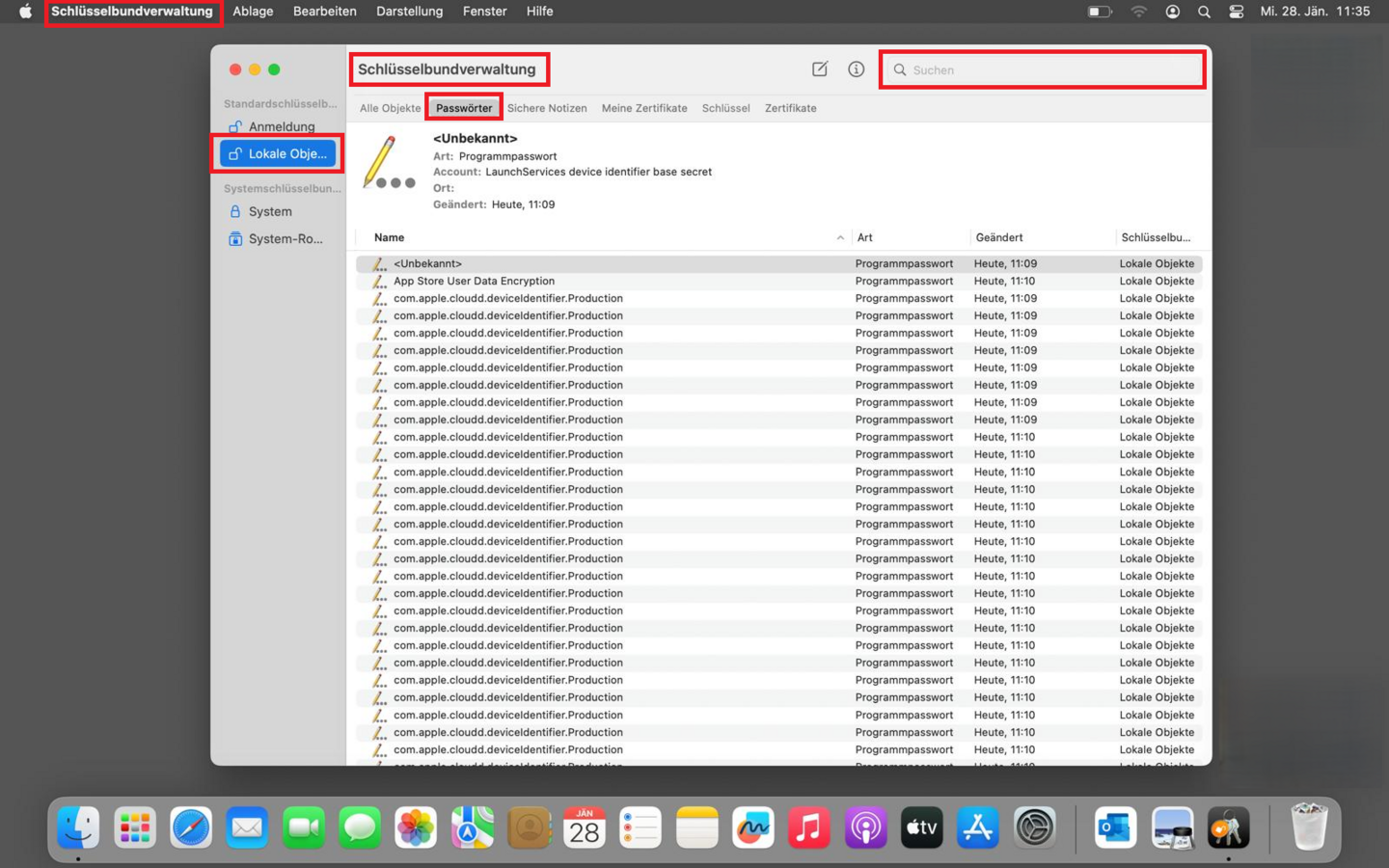
- Select Local Objects from the list on the left under “Default Keychains.”
- Use the search field at the top right of the window and search for terms such as:
- Exchange
- Outlook
- tuwien
- uptudate
- Office
- Right-click on the entries found and select “Delete.” Confirm the process.
Option 2: Check web passwords in System Preferences
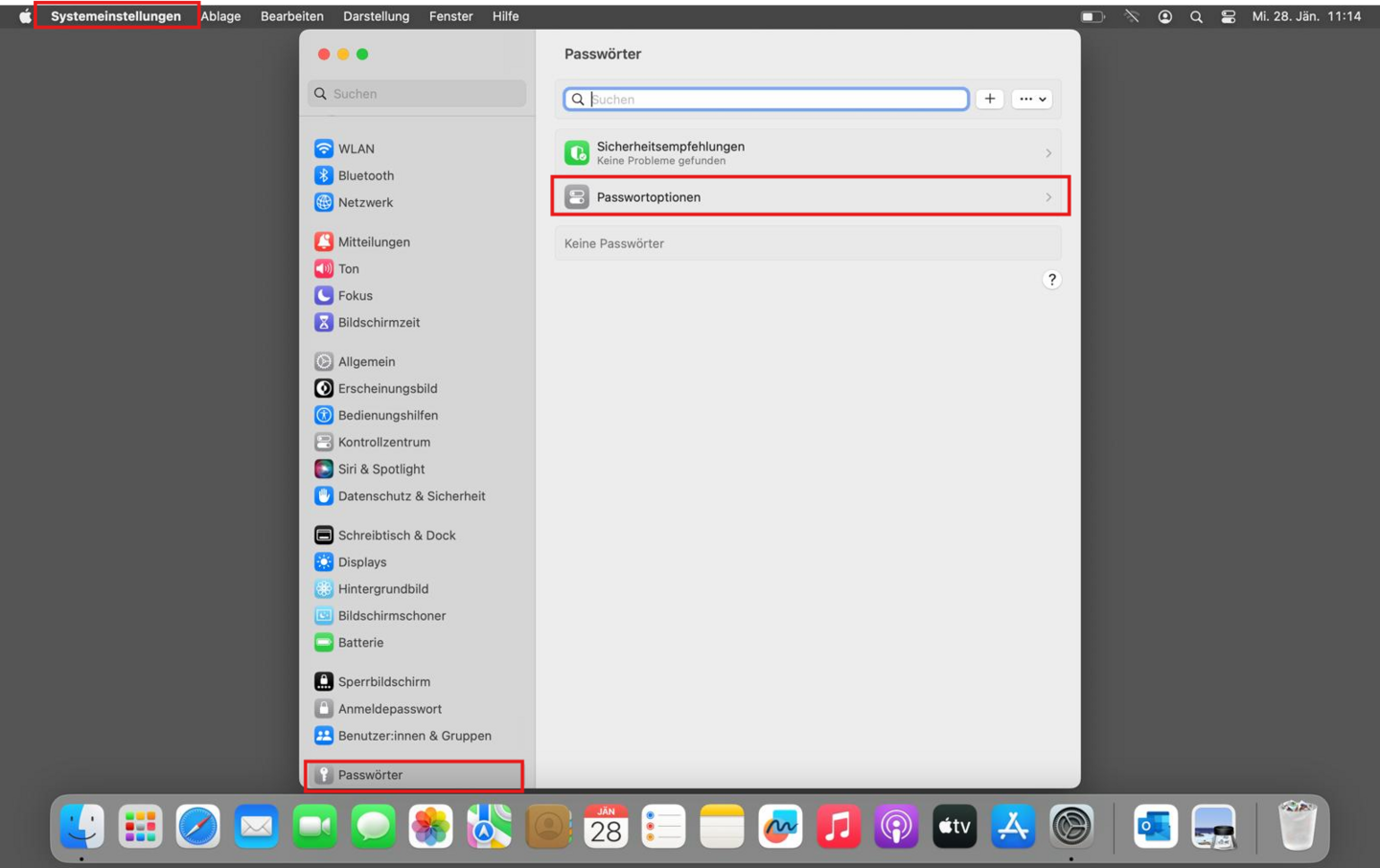
If you have also saved the password in your browser (Safari), you can find it in System Preferences.
- Open System Preferences (Apple menu in the top left corner → System Preferences).
- Scroll down the sidebar and click on Passwords. (You will need to authenticate with your Mac user password or TouchID).
- Search the list for “tuwien.ac.at” or “uptudate”.
- Click on the “i” icon (Info) next to the entry and select “Delete Password” or edit it directly there.